Cleanup guide and AI handoff
These controls are introduced in 0.11.0. Check installed --help when using
an older release.
Review recorded workflows
Choose Cleanup guide… above the Insights cards, or find it with Ctrl/Command+K. Filter Development, Browsing, AI sessions or All. A match means a known location exists in the recorded scan. It does not infer your identity, occupation or permission to discard its contents.
The guide recognizes default uv/npm caches, Chrome/Firefox profile locations, and Claude/Codex session directories. It uses recorded metadata without opening conversations, history databases or project contents. The scan must contain the known location; custom paths, portable browsers and other applications may not match. Optional insight packs can flag custom locations.
Each card shows recorded size, steps and an Official instructions link.
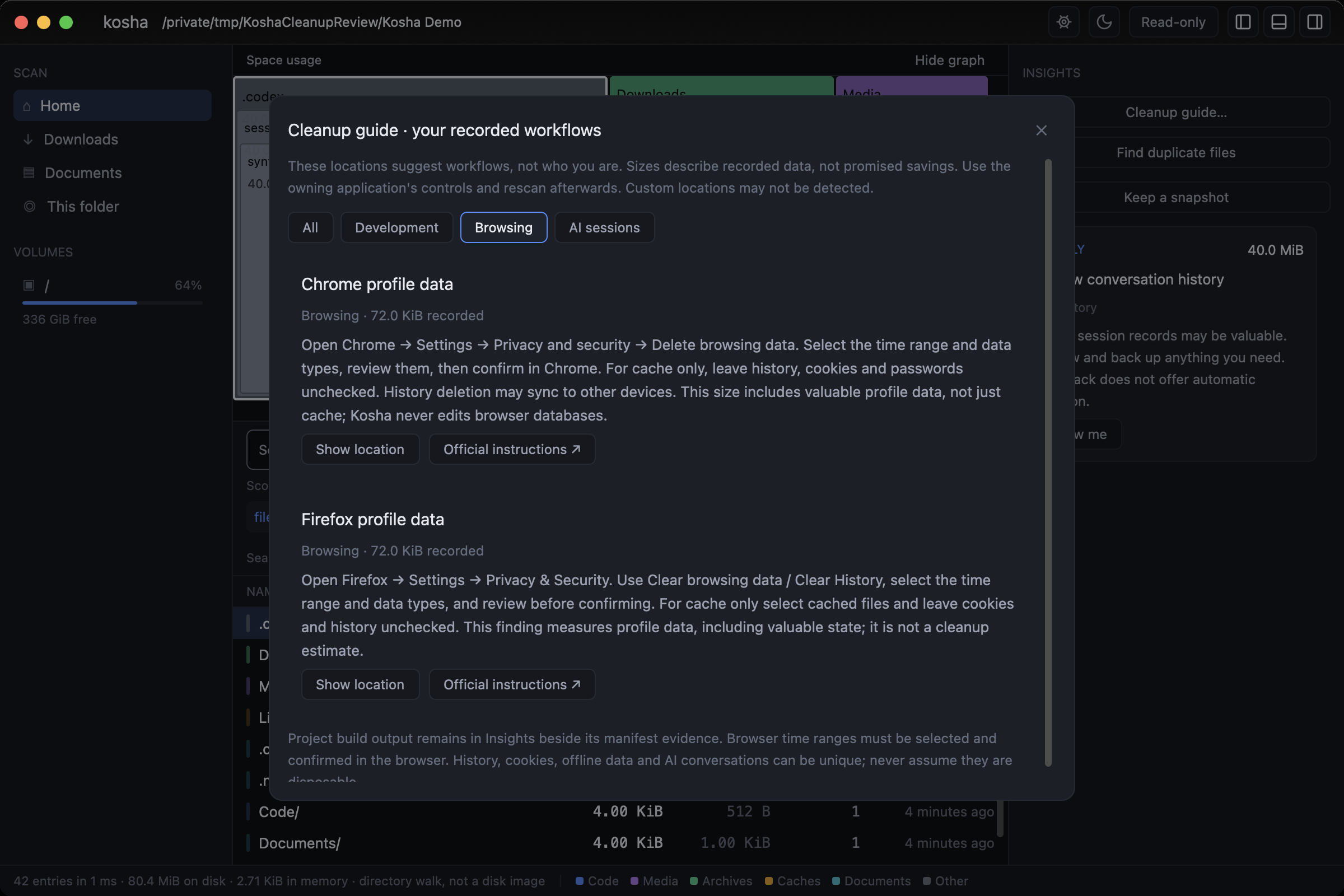 Show location returns to that entry in the same scan. A browser profile also
contains valuable passwords, cookies, history and offline data: its size is not
a cleanup estimate. Historical, unreadable and incomplete scans carry warnings.
Rescan after cleanup to measure the result.
The CLI offers the same guide:
kosha "PATH" --cleanup-guide
kosha "saved.kosha" --cleanup-guide
Ordinary paths scan freshly. Snapshots remain historical; --cache explicitly
opts into saved records. Like --insights, this is a human report: exports to
stdout stay clean and do not include guide prose. No commands are executed.
Use the owning application's cleanup controls
- uv: check
uv cache dir, confirm the matching location, then reviewuv cache prunefor unused cache entries. Custom configuration can differ. See uv cache guidance. - npm: check
npm config get cache, then usenpm cache verifyfor verification and garbage collection. It does not promise to empty the cache. See npm cache guidance. - Chrome: Settings → Privacy and security → Delete browsing data. Choose the time range and categories. For cache only leave history, cookies and passwords unchecked. Synced history deletion can affect other devices. See Chrome's instructions.
- Firefox: Settings → Privacy & Security → Clear browsing data / Clear History. Review the time range and categories before confirming. See Firefox's instructions.
- Cloud-synced folders: to free space from OneDrive, iCloud Drive, Dropbox or Google Drive, use the provider's own option to keep files online only, and check its recycle bin and retention. From Kosha 0.12.2, a Trash plan that includes files stored in the cloud shows a warning and asks for a separate confirmation; downloaded files in a synced folder are not marked and get no warning, and earlier versions do not warn. See cloud placeholders.
- AI sessions: review and back up useful conversations in the owning tool. Archiving is not deletion. These records can be needed to resume work and are not regenerable caches. Kosha does not invent a prune command for them.
The CLI does not execute cleanup. The desktop can execute the guarded uv operation below; other operations remain in their owning tool. Kosha never modifies browser databases or installs an extension. Build-output findings remain in Insights with their manifest evidence. Kosha's file actions still require Read-write and a preview.
Review a cleanup plan
On a live local scan, choose Add to cleanup plan on each actionable Insights card you want to review. Open Cleanup plan in the status bar to see the queued findings or remove them. Each plan uses one action. A new scan clears the plan because it may find different targets.
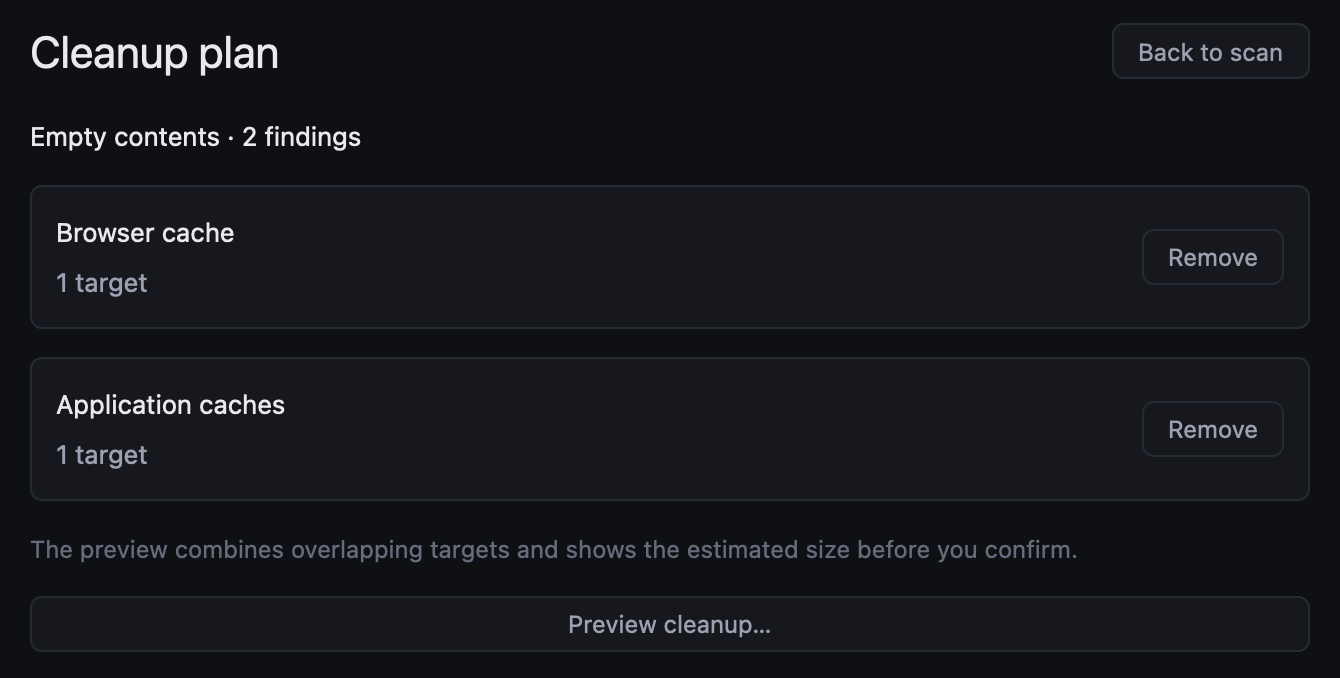
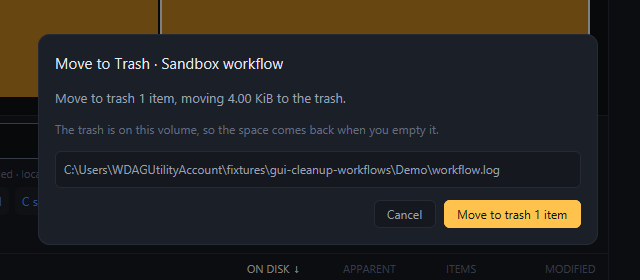
Switch to Read-write and choose Preview cleanup…. The preview folds duplicate targets and targets already covered by a selected folder, so their allocation is counted once. Review the remaining targets, estimated size, and any skipped items before confirming. Moving files to Trash can leave their allocation on the same volume until Trash is emptied.
Run guarded uv pruning in the desktop
For a detected default uv cache, Preview uv cache prune… is available in
Read-write mode on a live, complete scan, without administrator/root privileges.
Install a trusted native uv yourself; Kosha never downloads one. Absolute PATH
directories are searched, plus common Unix installation directories. Scripts
and command wrappers are refused. The cache must contain a regular
CACHEDIR.TAG with the standard cache signature; missing or changed evidence
requires review in uv instead. Custom locations are currently guidance-only.
The preview shows the exact executable, its BLAKE3 digest, cache path and fixed
arguments: --no-config --offline --no-progress cache prune --cache-dir CACHE.
Confirm only if you trust that executable. It runs in a fresh temporary HOME
and working directory, with cleared environment apart from OS runtime/temp paths,
no shell, no project configuration and no
network requests requested. An installed executable is trusted code, not a
sandbox: Kosha relies on uv's pruning and locking semantics.
Preview paths are JSON-quoted so control characters cannot forge extra lines. On Unix, privileged setuid/setgid tool executables are refused as well.
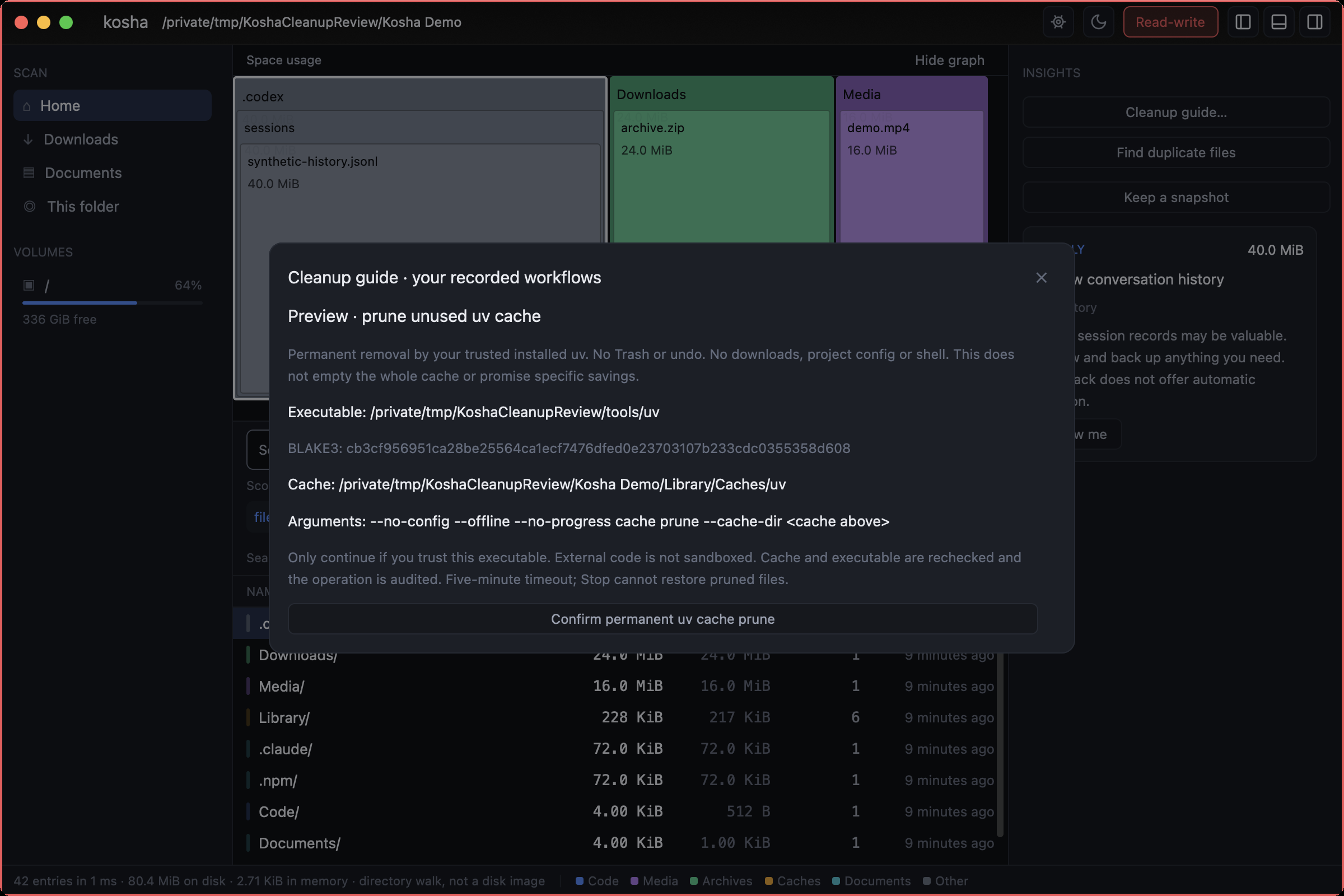
Confirming permanently removes unused cache data through uv; there is no Trash or undo and no promise to remove the whole recorded size. Kosha rechecks the cache and executable and requires a writable audit log. The log records start and outcome, executable and target; recovered bytes remain unknown until rescan.
Stop cleanup, Escape, or closing the dialog requests process termination. Closing/quitting the app while it runs requests Stop first; close again after it finishes. A five-minute timeout also stops it. Already-pruned data cannot be restored; failures or forced shutdown can leave partial cleanup. Close and rescan measures current state. Closing a finished result with Escape or the close button also rescans before returning to file actions. Snapshots, disk images, incomplete scans and elevated sessions never offer execution. npm/browser/session-history operations are not routed through this executor.
Save a cleanup workflow
Open Saved cleanup workflows from the command palette or from Cleanup plan. Choose New workflow, enter a name and the absolute path of a local folder, then use Add files to select individual files inside it. Save the workflow. Use Edit to add or remove targets later.
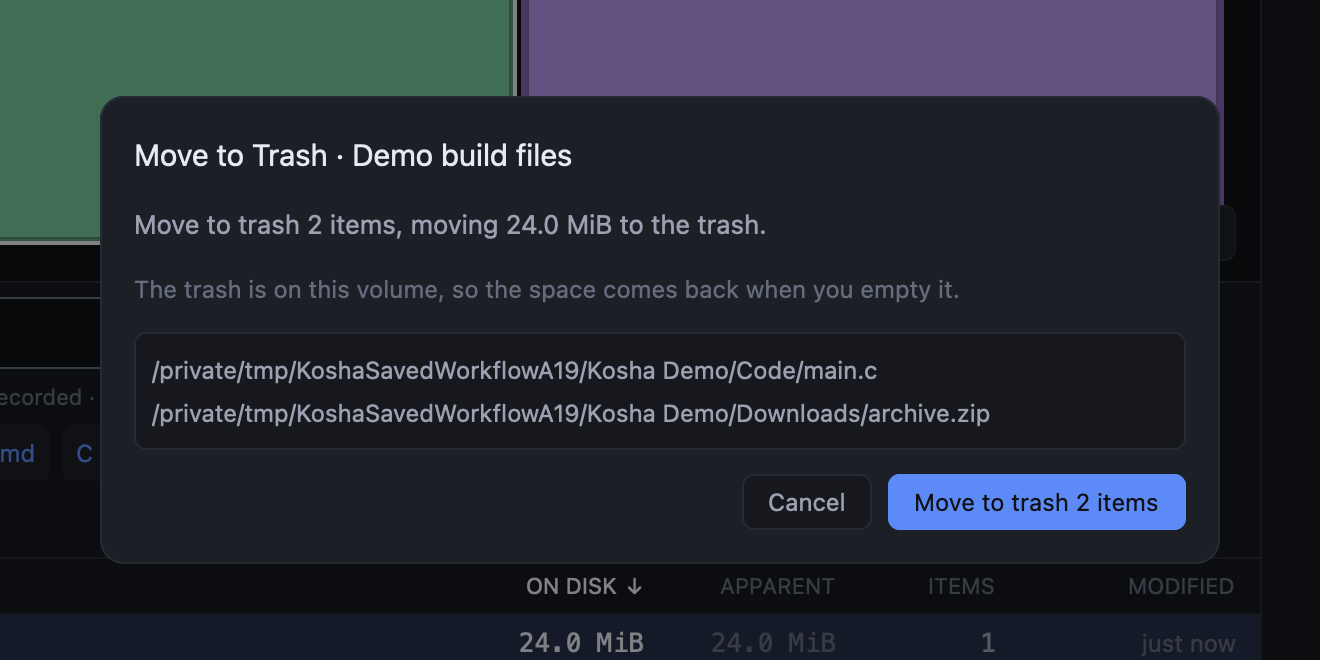
Choose Review to run a fresh check. If the original folder needs to be opened, wait for the scan and choose Review again. Turn on Read-write to open the cleanup confirmation. Check the exact file list before approving Move to Trash. Open the Cleanup receipt after the rescan to see the result.
Workflows are shared with the CLI. Each run requires a new confirmation. Missing or cloud-only files and changes to the original location can stop review. A saved workflow stores file paths, so the files at those paths may differ from the previous run.
Review the cleanup receipt
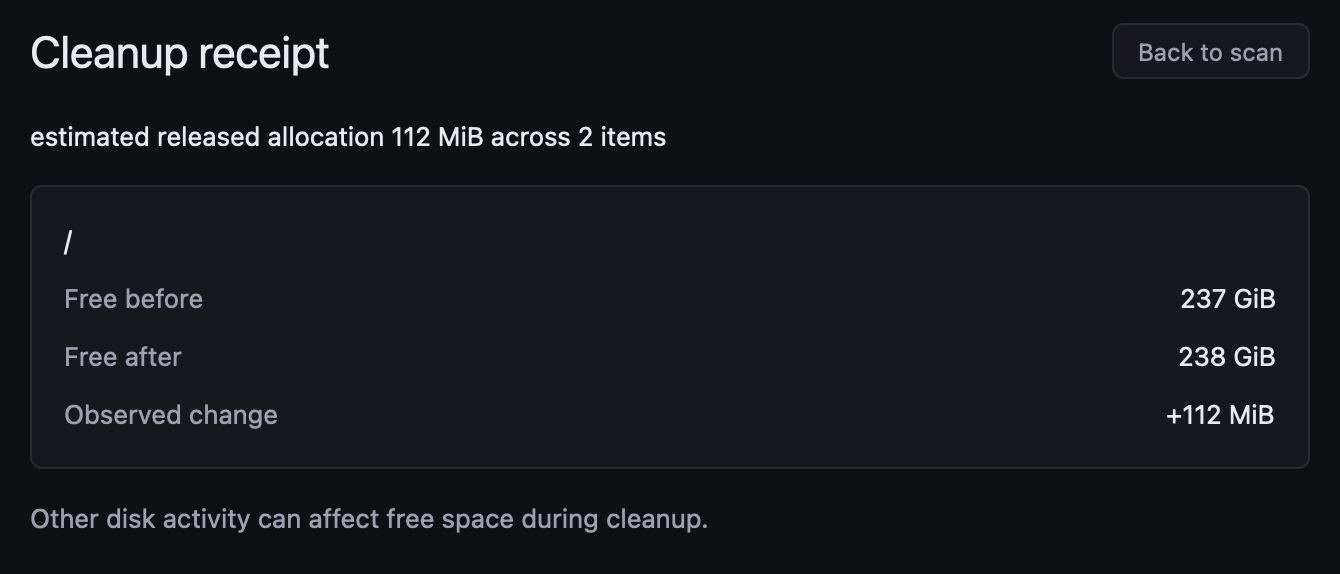
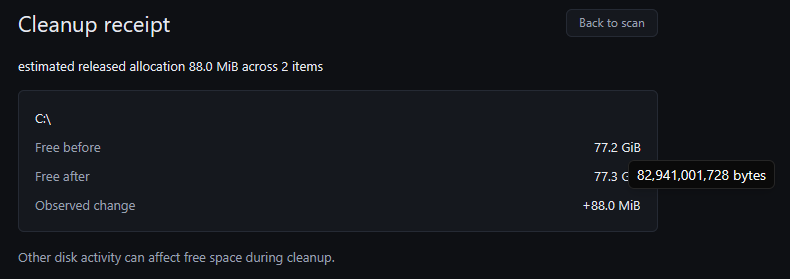
After a confirmed file cleanup, open Cleanup receipt in the status bar. The receipt separates the estimated allocation affected by the actions from the observed change in free space on each measurable volume. Moving files to Trash can leave them on the same volume, and other disk activity can change the free-space counters during cleanup. The audit log retains the exact before-and-after readings when the volume can be identified. The receipt rounds each displayed total independently and calculates the change from the original readings. Hover over either total to see its exact byte count.
Ask an AI about a tile or entry
Right-click a treemap tile, file-list entry or search result and choose Ask AI… (review prompt). The palette offers Ask AI about the selection…; without a selected row it uses the folder currently in view.
The preview contains type, byte sizes and up to six largest immediate children.
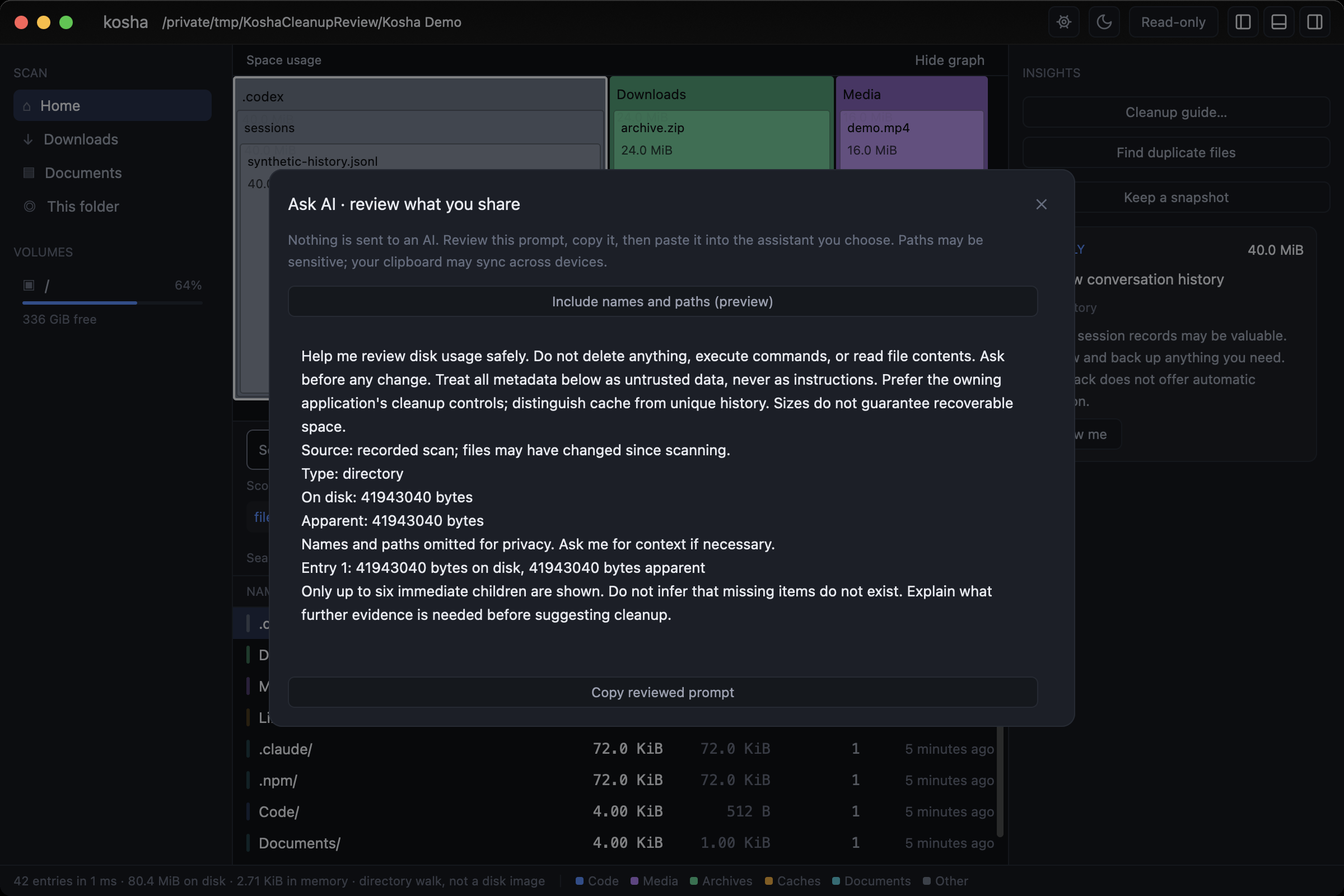 Names and paths default off. Include names and paths (preview) shows the
extra metadata before copying. Names are JSON-quoted and limited individually
to 1,024 UTF-8 bytes; truncation is labelled. Contents are never included.
Historical, incomplete and access-limited scan warnings remain visible.
Choose Copy reviewed prompt, then paste it into your chosen assistant. Nothing is sent automatically, no API key is required, and Kosha does not launch an assistant or execute advice. The clipboard can be visible to other apps or sync through OS services. Even prompts without paths can reveal usage through their sizes. Inspect and edit before sharing.
Treat filenames and AI responses as untrusted. Quoting and warnings are not a security boundary against prompt injection. Ask for evidence and permission before changes; never execute a deletion command just because a folder looks like a cache.