Cleaning up safely
For data access, local records and optional network services, see the privacy policy.
Modes and permissions
kosha starts in Read-only mode. Scanning, searching, and reviewing findings do not modify scanned files. The app can still save its own settings, snapshots, and automatic drive history.
Use the mode control or Ctrl+Shift+M to request Read-write mode. Read the confirmation before enabling it. Administrator privileges improve access; they do not automatically enable Read-write mode.
Review the plan
The built-in Build output insight skips any candidate containing a Git
checkout marker. This includes linked worktrees, which use a .git file.
Build artifacts inside a checkout can still appear as separate candidates.
For workflow-specific advice and reviewed AI prompts, see the cleanup guide. Browser history time ranges belong in the browser's own controls. The guide does not execute cleanup or bypass modes.
An actionable finding offers an appropriate operation. Review the named paths, estimated effect, and plan before confirming. The app checks file identity again before changing files and refuses protected system locations, filesystem roots, and the home directory itself. Operations can fail when files move, permissions change, or other processes keep files open.
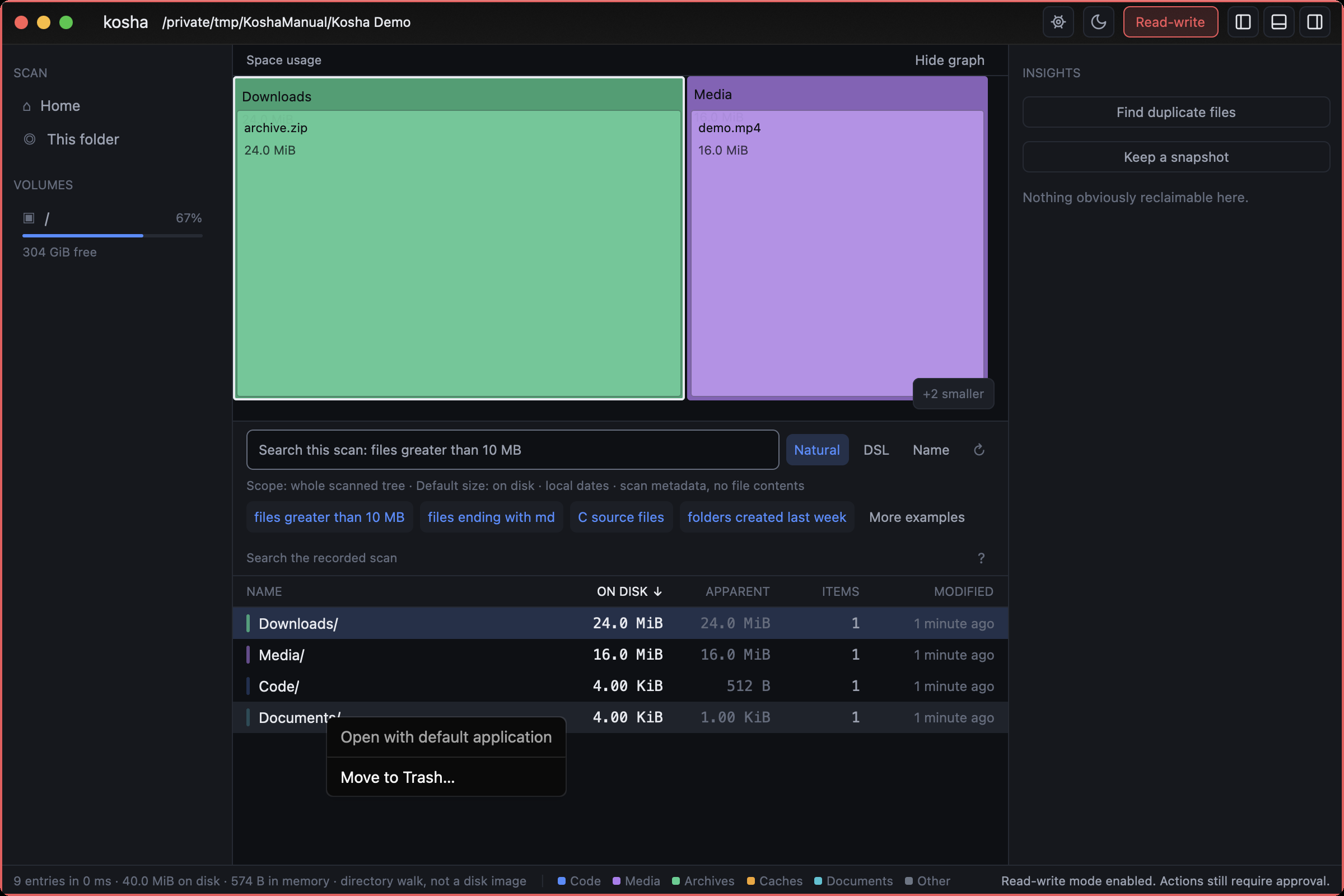
You can also right-click an entry in the file list or search results and choose Move to Trash…. Enable Read-write first; a live scan is required. With the list focused, Ctrl+Delete on Windows/Linux or Command+Delete on macOS opens the same preview. Nothing is removed until you confirm the named plan. If the plan includes files stored in the cloud, the preview adds a warning and a separate confirm button; see cloud placeholders. Preparing a preview runs in the background; Escape cancels it. A menu from an older scan cannot act on a replacement scan.
Treemap rectangles offer the same guarded context actions. Right-click the specific rectangle you intend to act on; a nested rectangle targets its own file or folder. A folder action includes its contents, even in a filtered search.
These entry context actions are additions after 0.10.7. The examples below use synthetic files on macOS. The same Read-write and confirmation requirements apply on Windows and Linux.
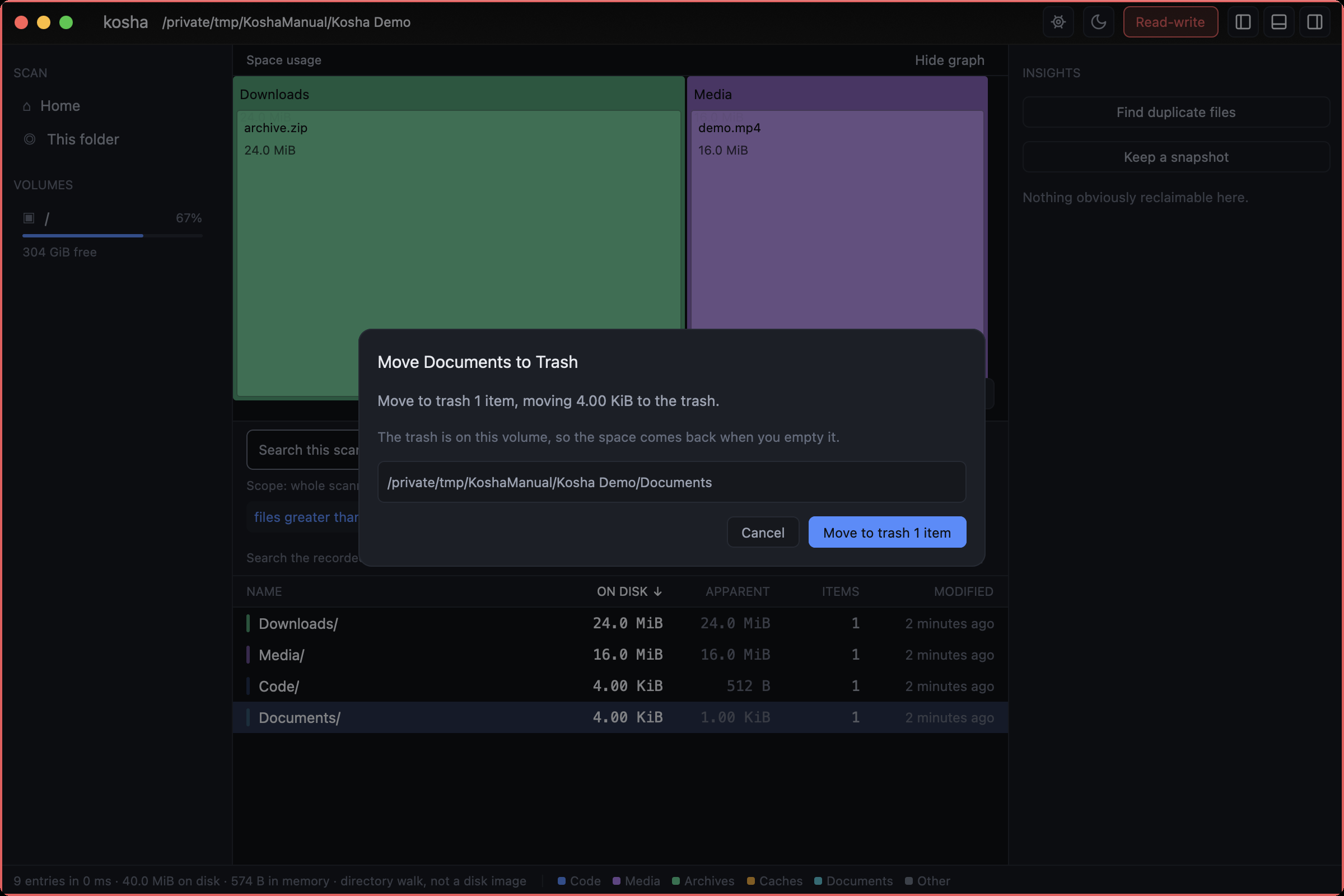
Trash is preferred to permanent removal where supported. Trash is not a backup: recoverability depends on the OS and destination. Permanent actions cannot be undone by kosha. Some findings are review-only and have no destructive action.
Space lost to cluster slack is one such finding. It measures allocation rounding, not files that Kosha knows are safe to delete. Show me locates the largest contributors. Use an application's own cleanup for its active caches; consider archiving only inactive documents after checking the archive and your backup. An archive alone does not free the originals' space, and recovery is not guaranteed to equal the displayed overhead.
After an action, kosha rescans rather than treating the old measurements as current. There is no continuous filesystem watcher. Ordinary browsing stays at the state observed during its scan until you rescan.
Cloud placeholders
Sync apps such as OneDrive, Google Drive, iCloud Drive and Dropbox normally treat a local delete as a delete, so moving a file to the Trash or Recycle Bin from a synced folder can remove the online copy too. A file stored only in the cloud has just a local placeholder, and deleting that placeholder may remove the only copy.
From Kosha 0.12.2, when a Trash (or permanent delete) plan includes files stored in the cloud, the confirmation says so:
- It names how many files are stored in the cloud, for example "3 files in this folder are stored in the cloud".
- It explains that they are not kept on this computer, that moving them to the Trash usually deletes the online copies too, and that they may be the only copies. Kosha cannot see what your sync app will do, so this says "usually" and "may".
- The ordinary confirm button is replaced by one that names the count, such as Move everything, including 3 cloud-only files or Move 1 cloud-only file to the Trash. Nothing in the plan is removed unless you press it.
- Skip cloud-only items is offered as an alternative when something else would remain in the plan. It drops the cloud-only files; a folder that holds one stays on disk, and its other contents are planned. It is not offered for Empty contents, which stays gated by the cloud confirmation.
- Folders and files with no such files see no change to the dialog.
- The audit log records the cloud risk (the number of cloud-only files) and whether you confirmed it. See Audit history.
Versions before 0.12.2 do not warn.
Limits to keep in mind:
- The warning rests on the marker the operating system sets on a placeholder (cloud-synced folders). Files that are already downloaded in a synced folder carry no marker, look like ordinary local files, and get no warning. Deleting them can still delete the online copy.
- On Windows, files moved to tape or an archive (hierarchical storage) use the same marker, so they are described as stored in the cloud too.
- Linux has no marker, so nothing is flagged there.
So:
- To free space, use the provider's own software, for example "Free up space" or "online only", and check the provider's own recycle bin and retention.
- Keep Kosha in Read-only mode when you scan synced folders that you do not intend to clean.
Historical and incomplete views
A saved drive scan or explicit snapshot describes the past. File-changing actions require a fresh scan. An incomplete scan covers only the part reached; partial results may also include access errors. Review these indicators before relying on totals or findings.
Audit history
File-changing operations are recorded in audit.jsonl in the application-data
directory. The palette can show the log's location. It is an operation record,
not a backup or undo mechanism, and can contain affected paths and filesystem
metadata. From 0.12.2, an entry that included cloud-only files also records how
many there were and whether you confirmed the cloud warning. See
settings and stored files.