Scanning drives, folders, and images
Choose a scope
The sidebar offers personal folders, pinned folders, volumes, and, where available on Windows, WSL distributions. A drive or WSL distribution click opens its last saved scan if one exists. Kosha saves completed whole-distribution scans on Windows so you can reopen them while the distribution is stopped. Use Scan again or Ctrl+R to refresh the record. Choose a folder starts a fresh scan of any accessible folder.
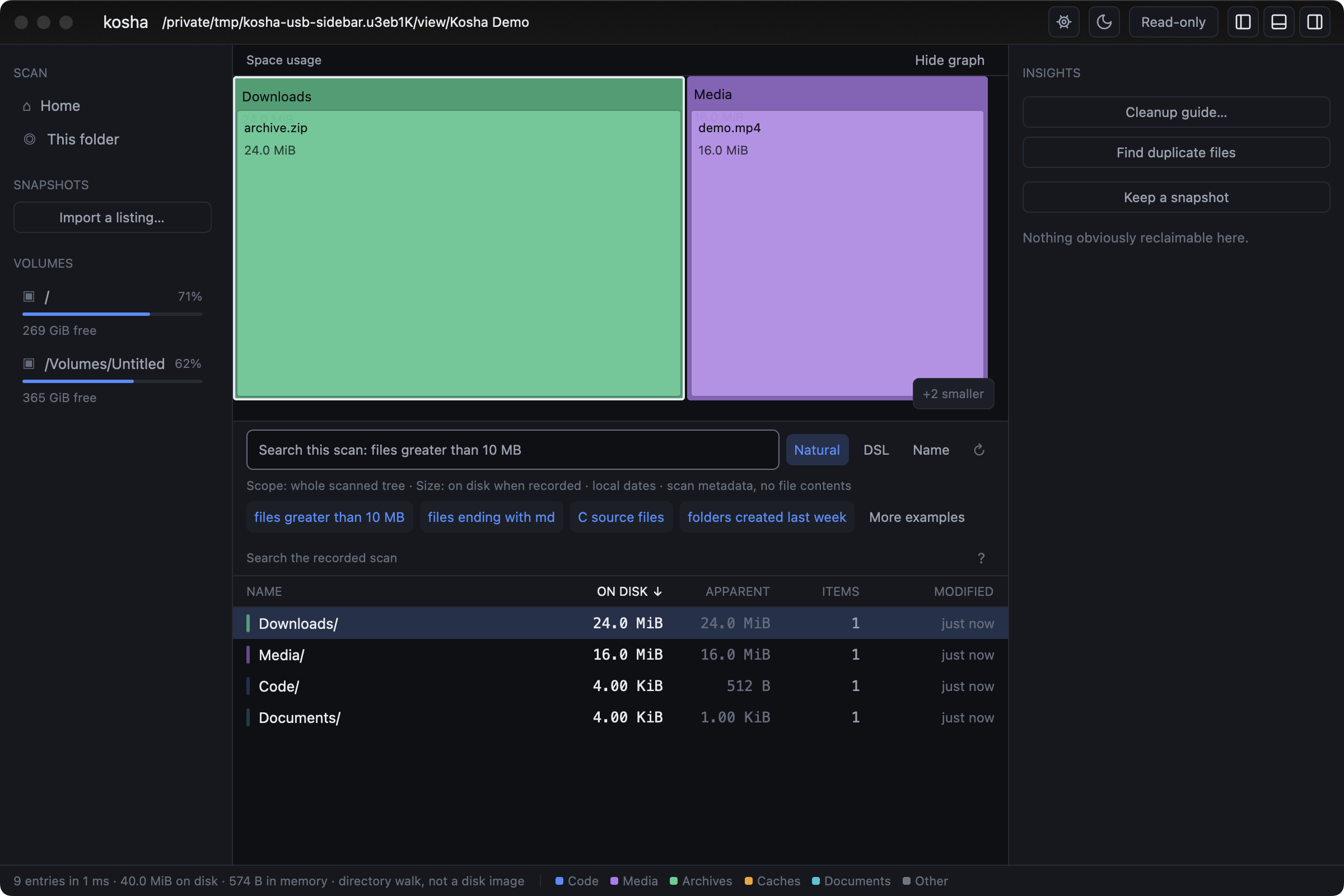
On macOS, mounted volumes under /Volumes appear in the sidebar, including
external USB drives. Switch back to the Kosha window after connecting a drive
to refresh the list. macOS may ask for permission when you start a scan.
By default, directory walks do not descend into other mounted filesystems. Scan settings can change this. Symbolic links are measured without following their targets. A scan describes its chosen scope, not necessarily an entire disk.
Fast NTFS scan on Windows
WIP for the planned v0.18.0 release. These steps apply to the Windows MSIX that includes the Fast NTFS worker.
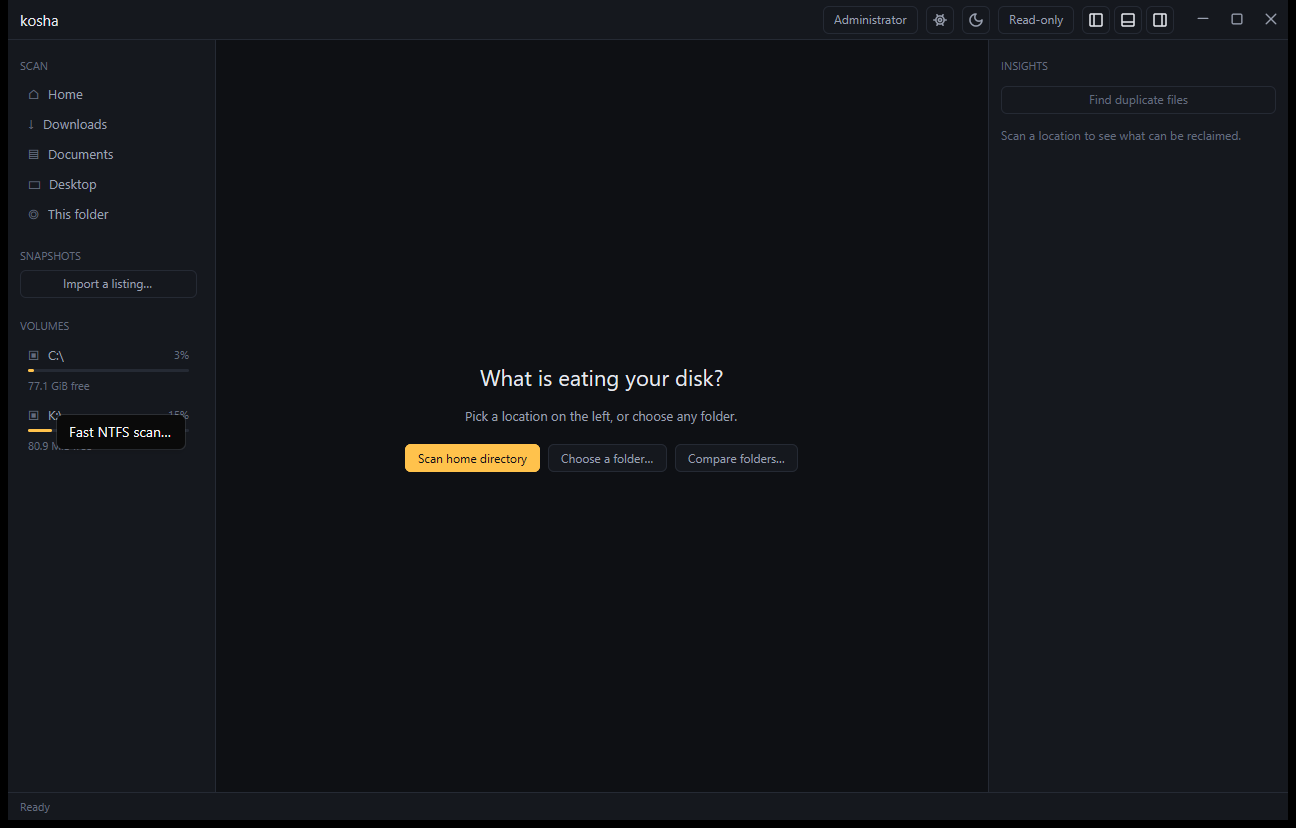
Use Fast NTFS when you need a whole-drive view of a local NTFS volume, especially on a large HDD. Kosha reads the drive’s Master File Table (MFT) to build the size report. For a particular folder, use Choose a folder.
- In the sidebar, right-click the NTFS drive and choose Fast NTFS scan…. Check the drive letter before continuing.
- At the Windows administrator consent prompt, approve only the
kosha-ntfs-worker.exerequest you just started. The worker reads filesystem metadata for the selected drive. Kosha keeps cleanup in the main window, where its normal confirmation rules apply. - Look for Master File Table in the status bar. If you decline consent or the worker is unavailable, Kosha reports the fallback and scans what your account can read. Unreadable entries can make the totals a lower bound.
Use Stop scan or Esc to cancel. An interrupted Fast NTFS scan leaves
the last completed drive snapshot available. For the packaged CLI, run
kosha D:\ --mft --stats with your drive letter. The report identifies an
MFT scan, and a fallback reason is printed separately.
Monitor local storage over time
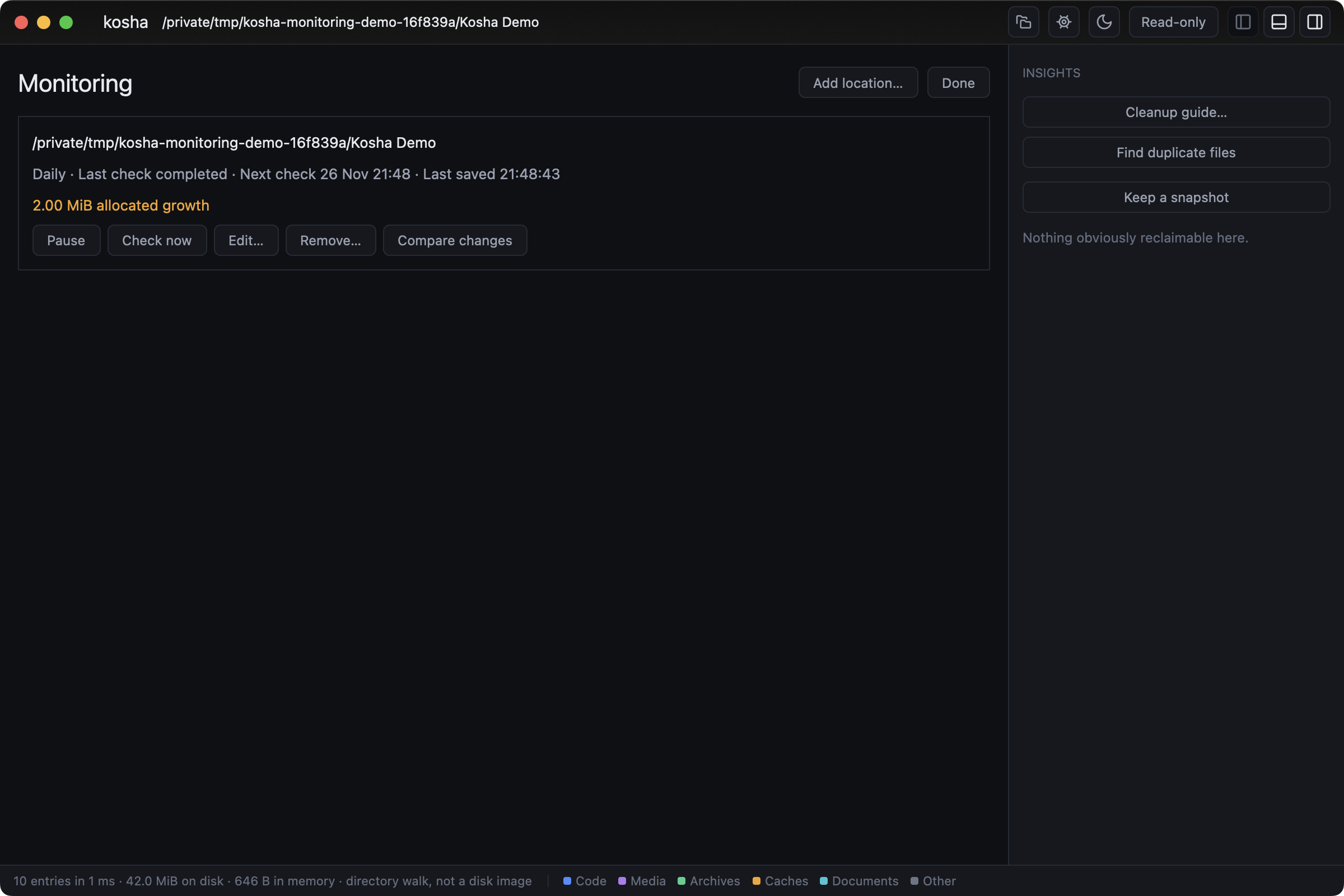
Open Monitoring from the command palette, then select Add location…. Enter an absolute path to a local drive or folder, choose Daily or Weekly, and provide at least one positive threshold in bytes. Allocated growth compares a completed scan with the previous baseline. Low free space uses the available bytes on the containing filesystem.
Kosha checks due profiles while the desktop app is open. Check now starts an immediate check, and Pause suspends checks for that profile. You can cancel a scheduled scan from the background activity panel. Use Compare changes on a growth alert to view the two saved snapshots. Remove… stops future checks and preserves the saved observations. For checks while the app is closed, use the scheduler command.
Native WSL2 scans
On Windows, open Settings and enable Scan inside WSL2 under Scanning. Refresh the selected distribution with Scan again. The CLI equivalent is:
kosha '\\wsl.localhost\Ubuntu' --wsl-native --stats
Install the matching Linux Kosha CLI from the
release downloads in that WSL2
distribution, using the Linux archive for its architecture. Put kosha on the
distribution's executable PATH, for example in /usr/local/bin. From
PowerShell, verify it with wsl.exe --distribution Ubuntu --exec kosha --version.
This starts the chosen distribution and runs as its default Linux user. The
scan stays on the Linux root filesystem and skips the root's /mnt branch. A
/home directory on the root filesystem is scanned normally, subject to the
Linux user's permissions. A separately mounted /home is shown as a filesystem
boundary. Check findmnt -T /home inside the distribution to see where it lives.
An unreadable entry or a filesystem boundary can have no measured contents.
Native results are metadata for read-only browsing. A matching CLI is required
for this mode. If it is unavailable, turn off the setting or omit
--wsl-native to use the Windows redirector again. In the desktop app a disk
image request, including Shift-click, takes precedence over native mode.
Cloud-synced folders
Google Drive for desktop, iCloud Drive, OneDrive and Dropbox keep a local folder that mirrors an online account. Kosha scans that local folder like any other. It does not sign in to any account, contact the provider itself, or see files that exist only online and have no local entry. The provider's own software may fetch folder listings from its service while a folder is read; that is its behavior, not a request made by kosha.
Some providers leave a placeholder for a file whose data is not stored on this computer. A placeholder reports the file's full length but occupies almost no disk space. Kosha recognizes placeholders only from a marker the operating system sets on the entry, never from a folder or file name:
| System | Marker kosha reads | Status |
|---|---|---|
| Windows | The offline and recall-on-open or recall-on-data-access file attributes, as used by OneDrive Files On-Demand | Tested with the offline attribute; not tested against a live cloud provider |
| macOS | The SF_DATALESS flag that macOS File Provider folders (under ~/Library/CloudStorage, and iCloud Drive) use for files whose data is not downloaded |
Flag logic is unit tested on synthetic data; not yet checked against a real placeholder |
| Linux | None. No standard marker exists, so a file is not identified as a placeholder | Provider mounts made by third-party tools are treated as ordinary files |
A flagged placeholder is shown with its full length as the Apparent size and
is marked as stored in the cloud in Quick look. Its length is an upper bound
rather than a measurement, because most of it is not on this disk. In exports the
entry carries the offline flag. Kosha does not open a placeholder, so scanning
does not download it. Duplicate searches skip placeholders before comparing
sizes and report how many files were skipped, because reading a file would
download it. The same applies to fragmentation checks.
Deleting a placeholder can delete the only copy, because the local entry is the handle for the online file. From Kosha 0.12.2, a Trash or permanent-delete plan that includes flagged files shows a warning that names how many, says that moving them to the Trash usually deletes the online copies too, and requires a button that names the count; Skip cloud-only items is offered as an alternative. See cloud placeholders. Versions before 0.12.2 do not warn.
Fully downloaded files in synced folders carry no marker and look like ordinary local files to Kosha, so they get no warning, and sync apps normally treat a local delete as a delete. On Windows, tape or archive (hierarchical storage) files use the same marker and are also described as stored in the cloud. Use the provider's own software to free space, for example by choosing to keep files online only, and check its recycle bin and retention. Keep Kosha in Read-only mode when you scan synced folders that you do not intend to clean.
Two limits to keep in mind:
- Mirrored files (a full local copy) are ordinary files with real sizes. Which mode a provider is in changes how much a scan can tell you.
- How Google Drive for desktop presents its files is assumed from Google's and Apple's published descriptions and has not been verified with kosha. In its streaming mode on Windows it is unknown whether uncached files carry the Windows attributes above; if they do not, kosha treats them as local, so do not run a duplicate search on a streamed Drive folder. On macOS it is assumed to use the File Provider mechanism described above. Google Docs, Sheets and Slides appear locally as small pointer files, so their online storage use is not visible. Treat Drive results as unverified until this page says otherwise.
For mounted cloud filesystems and for files on other machines, see cloud storage and other machines.
Speed and remaining time
The scan view shows entries found and queued directories. An entry can be a file or a directory. Speed uses a sliding window of up to 30 seconds, including time spent waiting for filesystem reads.
When a previous finished scan of the same scope is available, kosha estimates remaining time from its entry count and the current entries per second. The view identifies that reference count. The estimate starts after enough measurements are available and changes as scanning proceeds.
The total is historical: files may have been added or removed. If the new count exceeds it, or progress stalls, kosha stops showing a countdown. A first scan with no prior total shows throughput and total entries unknown. Some index and disk-image strategies report different work units, so they show progress without using a tree-entry countdown.
Stop and completeness indicators
Use Stop scan or Escape. If a modal panel is open, Escape dismisses it first. Stopping scan… acknowledges the request while current filesystem reads return. Network storage or a device waiting on hardware can delay that return.
When usable results remain, the view shows Incomplete scan persistently. Stopping does not replace the previous automatic drive snapshot. Some scan strategies cannot return a usable tree after cancellation and return to idle.
| Indicator | Meaning |
|---|---|
| Incomplete scan | The scan was stopped, or a depth limit left folders unscanned. |
| Partial / unreadable | Some entries could not be accessed during the scan. |
Both conditions can occur together. Totals are lower bounds whenever coverage is incomplete or entries were unreadable. A finished scan with access errors can still be saved and keeps its unreadable indicators.
Faster strategies and images
On Linux, a normal scan uses a parallel directory walk. Shift-click a volume to bypass its saved observation and scan it again. The scan still respects your account's filesystem permissions and the configured mount boundaries.
On Windows, Shift-click a location to request the filesystem's index for that scan and bypass its saved view. NTFS Master File Table reading needs administrator privileges. Reading a WSL distribution's image is another strategy. Settings can request these strategies for future scans. Unavailable strategies fall back where possible, with the reason reported. Administrator and Read-write are separate choices.
Use Scan a disk image for a filesystem image. Readers include ext2/3/4, NTFS, XFS, FAT12/16/32, exFAT, ISO 9660, and UDF, with supported VHDX and partition layouts. Images are read without mounting or modifying them. A live VM's image reflects what was written to the image, which can differ from the VM's current view. A multi-filesystem image reports which filesystem was selected.
Next: Results and search.