Saved drive scans, snapshots, and comparisons
Both kinds of record store sizes and metadata, not copies of file contents.
New snapshots use format 2 and retain filesystem creation dates where the scan recorded them. Format 1 records still open, with creation dates marked unknown. Keeping an older automatic record preserves its original metadata; it does not invent missing dates. Older kosha builds cannot open format 2 records. From Kosha 0.13.0, imported listings use format 3, so an older Kosha refuses them instead of showing them as its own scans.
| Record | Created by | In snapshot list | Retention |
|---|---|---|---|
| Automatic drive scan | Finished drive-root scan in the desktop app | No | One replaceable slot per drive root |
| Explicit snapshot | Keep a snapshot, or CLI --snapshot |
Yes | Kept until removed |
| Imported listing (from 0.13.0) | CLI kosha import |
Yes | Kept until removed |
The CLI lists these separately: kosha --snapshots shows explicit snapshots;
kosha --caches shows automatic drive records and their age without rescanning.
Cache listings read headers only. See the command-line guide
for JSON/JSONL inventory and error statuses.
Automatic drive scans
A finished drive scan is written in the background. Selecting that drive again can display the finished record immediately in the same session. After an app restart, selecting the drive reads the record from disk and shows Opening saved scan while it loads. Press Esc to dismiss the load.
Saved scan beside the breadcrumb shows its age. Scan again or Ctrl+R refreshes the disk view. Shift-clicking the drive requests a new scan using an available filesystem-index strategy. Missing or unreadable saved records trigger a scan.
A new finished scan replaces the automatic record. Cancelled and depth-limited scans do not. Finished scans with inaccessible entries can be kept and retain their partial indicators. Folder scans are not saved automatically.
History follows the drive's root path. A replacement removable drive or changed drive-letter assignment can therefore open a record of the previous disk. Check the age and choose Scan again before relying on it.
Review volume space
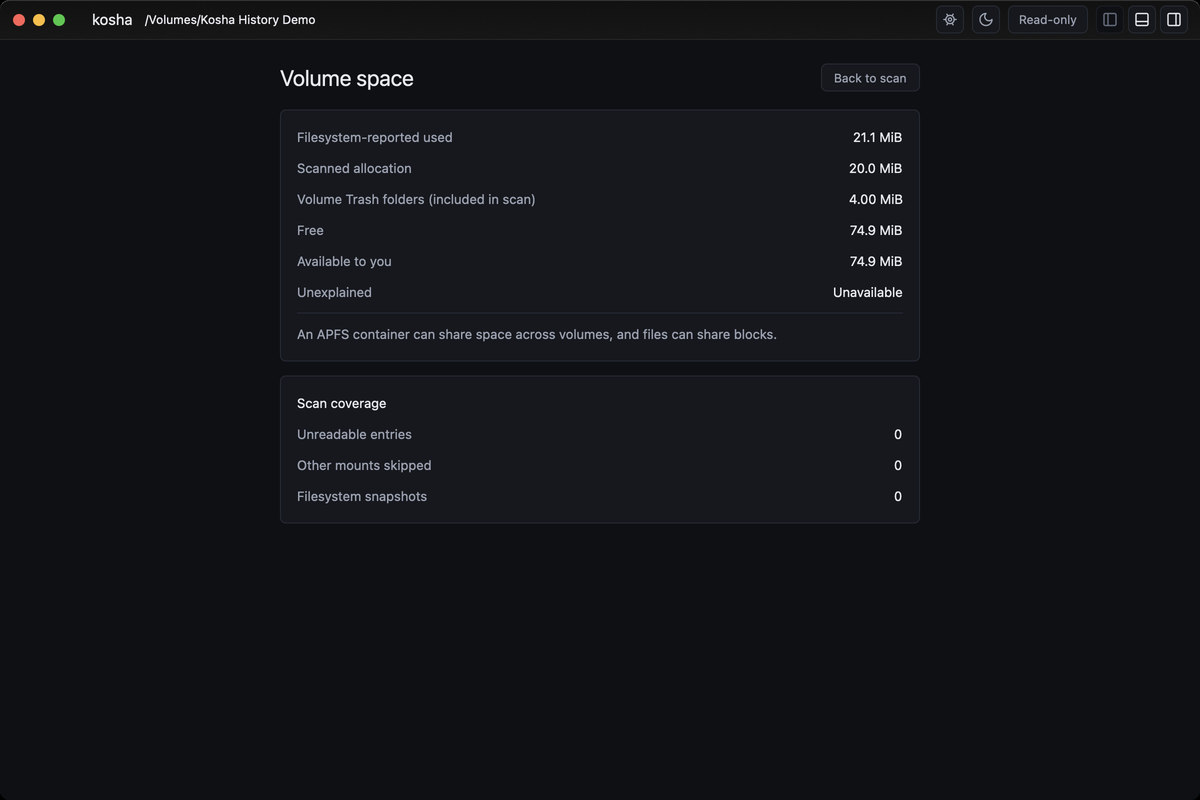
After a fresh scan of a supported local drive, choose Volume space from the toolbar. Compare the filesystem’s reported usage and free space with the allocation visible in the scan. Available to you accounts for restrictions such as quotas or reserved blocks. On Windows the used figure follows the caller’s quota scope.
View Volume space on Windows, with caller-scoped usage and estimated scanned allocation.
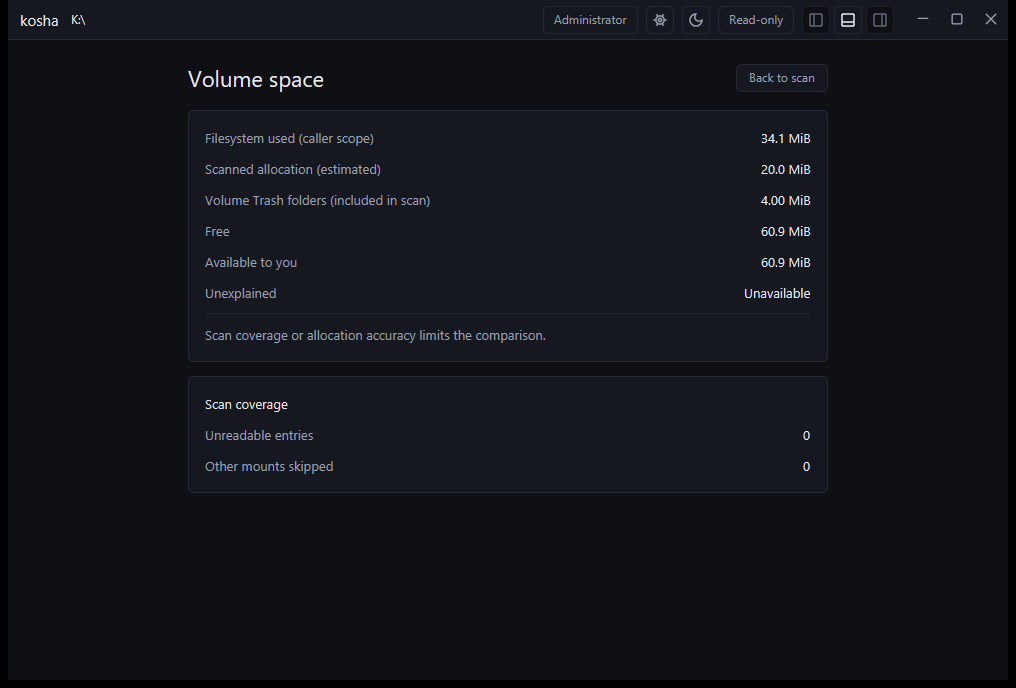
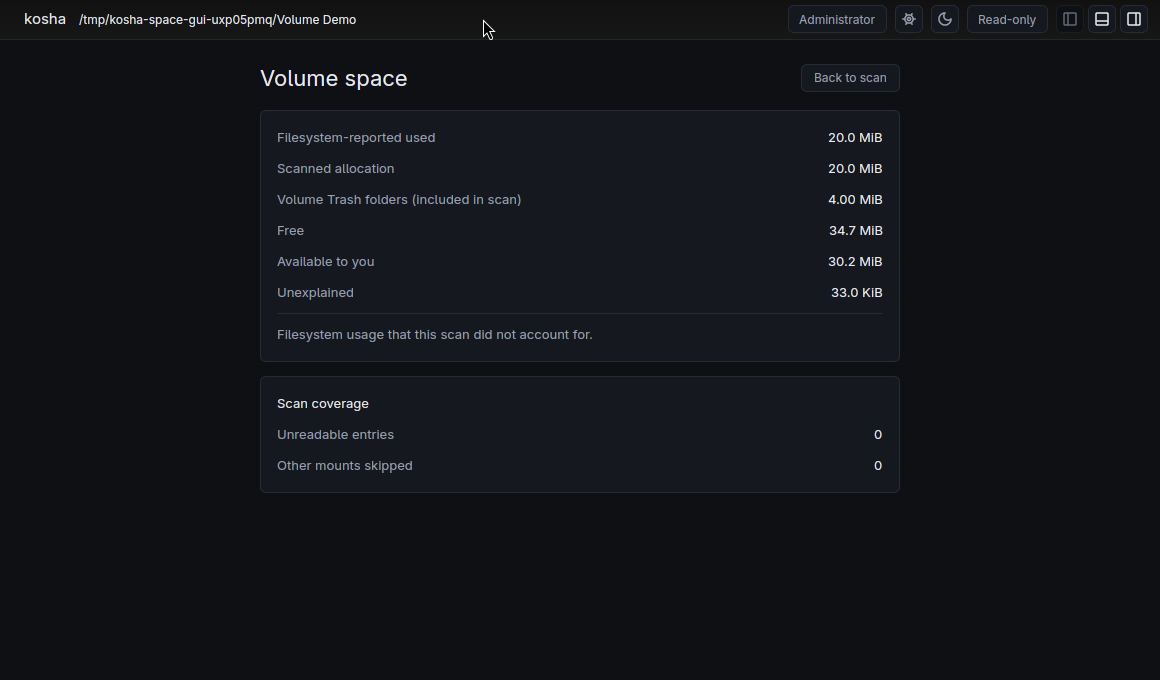
The scan labels partial and estimated totals and reports unreadable entries and skipped mounts. If the scan could read a recognized volume Trash folder, its allocation is shown as part of the scanned total. Trash stored elsewhere and snapshots can affect usage without appearing in that row. On macOS, Kosha can show the filesystem snapshot count when the volume exposes it. Snapshot space remains unquantified.
Kosha reports an unexplained difference only when the filesystem accounting scope is supported, the counters agree before and after the scan, and scan coverage supports the comparison. The difference can include filesystem overhead and allocation outside the scan. Shared APFS accounting and Windows quotas can prevent a reliable difference.
Run kosha space ROOT for a fresh read-only volume scan, or add
--format jsonl for a structured summary. A null gap has a status explaining
why a size could not be reported.
Review drive history
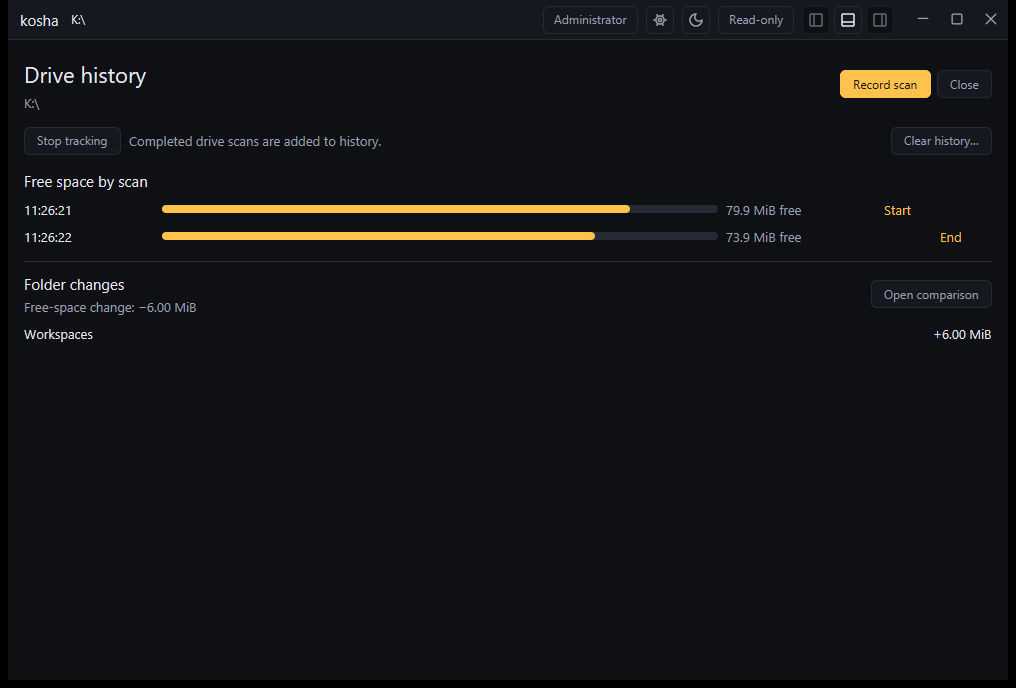
Open a local drive in the desktop app and choose History beside its breadcrumb. Record scan takes a new drive scan and adds an observation. After the second observation, Kosha shows free space for each scan and ranks the largest top-level folder changes by allocated size.
Choose Track this drive to add future completed drive scans to its history automatically. Tracking is off by default and does not schedule additional scans. Stop tracking keeps the existing observations. Clear history… asks for confirmation before removing observations for the selected drive. If tracking is on, future completed scans start a new history.
The newest two observations are selected initially. Change the interval with Start and End beside the observations. Open comparison opens the two saved records to show individual path changes and export the findings. Kosha marks partial scans and displays folder growth only for compatible, complete observations.
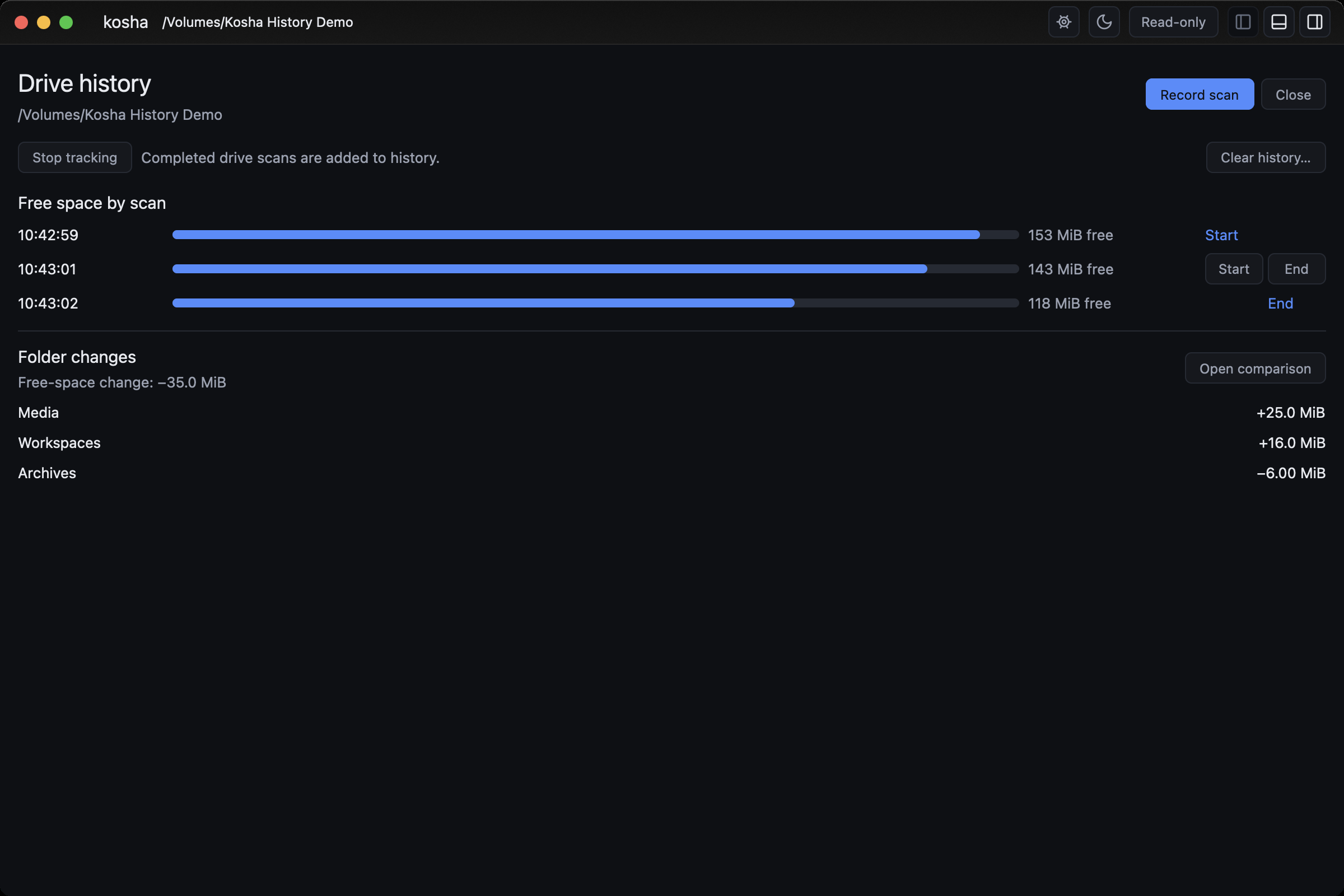
View Drive History on Windows with a 6 MiB change to a synthetic NTFS volume.
Record drive history from the command line
Use a mounted local volume root, such as an external drive. Run
kosha history record ROOT to take a scan and save its capacity and free-space
measurements alongside the snapshot. Repeat after the drive changes.
kosha history list ROOT lists the observations in time order. Use
--format jsonl for timestamps in Unix milliseconds, byte totals and snapshot
paths. Run kosha history growth ROOT to rank measured allocation changes
in top-level folders between the newest two complete, compatible scans.
That ranking can account for some of the volume's free-space change. Pass two
listed snapshot paths to kosha compare to see individual changes.
History is separate from saved drive scans and explicit snapshots. It follows a
supported volume identifier across changes to the mount path. On Linux, this
requires a whole local block filesystem with a matching UUID in
/dev/disk/by-uuid. Network volumes, WSL paths viewed through Windows, and
volumes without a supported identifier are unavailable. Partial scans are
marked. A missing free-space measurement is reported as unavailable.
Kosha keeps up to eight observations and 512 MiB of history per volume. It keeps the newest observation even if that snapshot alone exceeds the byte limit.
Explicit snapshots
After a fresh scan, choose Keep a snapshot. It appears in the sidebar with
its root, age, and storage size. Explicit snapshots do not overwrite one another.
You can also open a .kosha snapshot directly.
In the CLI, use its full/relative path or exact stored filename, including
.kosha. Existing local files take precedence over a stored copy with the same
name. ./NAME.kosha requires that local path; the full store path printed by
--snapshots selects the stored copy explicitly. The same rules apply to
--since and search --load. Corrupt local files fail without substituting a
different saved record; labels and partial filenames are not shortcuts.
While viewing an automatic Saved scan, choose Keep saved scan as snapshot to keep that historical observation without rescanning. The note under the button shows the original date; the command palette offers the same action. The explicit snapshot keeps that date, including its original timestamp precision, and the scan's measurement metadata. The confirmation notice repeats that the original scan date was preserved.
The snapshot file's filesystem creation time reflects when you kept it; kosha's displayed scan date remains the original observation date.
The kept copy appears in the snapshot list and survives future replacement of the automatic drive record. Keeping a cached scan does not make it current: its age and historical-view safeguards still apply. When you open an explicitly kept snapshot, it is already in the list and does not offer another keep action.
A newly saved stopped scan retains Incomplete scan when reopened. Older snapshot formats may lack that specific cancellation detail. Prefer a finished scan when making a baseline with full traversal coverage.
Snapshots from another system
A .kosha file can be opened on a different operating system from the one
that recorded it. Names are kept exactly as recorded wherever the opening
system can represent them. Linux allows file names that are not valid UTF-8
text, and Windows cannot represent some of them. When such a snapshot is opened
on Windows, those names are shown with the replacement character � and the
app's notice (or a note: line on the CLI's standard error) says how many names
were affected. Sizes and the folder structure are unchanged. A comparison may
report those entries as gone and new, and a metadata view
refuses to share a replaced name.
To bring a snapshot from another machine, see cloud storage and other machines.
Imported listings
From Kosha 0.13.0, kosha import --from ncdu FILE keeps an
ncdu JSON export as a record; see the
command-line guide for the command.
ncdu can run on a machine where Kosha is not installed, and its export can be
copied or piped here. Kosha reads only the file you name (or standard input),
starts no program and makes no network request.
From Kosha 0.14.0, you can also import an rclone listing. Choose Import a listing under Snapshots in the desktop app to preview, name and save an ncdu or rclone listing in a dialog. Press Escape to cancel reading or close the preview. rclone provides apparent sizes only. A listing can retain duplicate paths, which makes path comparison unavailable for that record.
An imported record is not a Kosha scan, and every view says so: the CLI header,
--stats, the --snapshots list and search print
Imported from ncdu 2.9 (export 2026-11-20 14:02 UTC). Not measured by Kosha.
with the tool and date from the file. In the desktop app the chip beside the
breadcrumb reads Imported · ncdu and the status bar repeats the sentence.
If the export has no timestamp, the line says observed: unknown and gives the
import date.
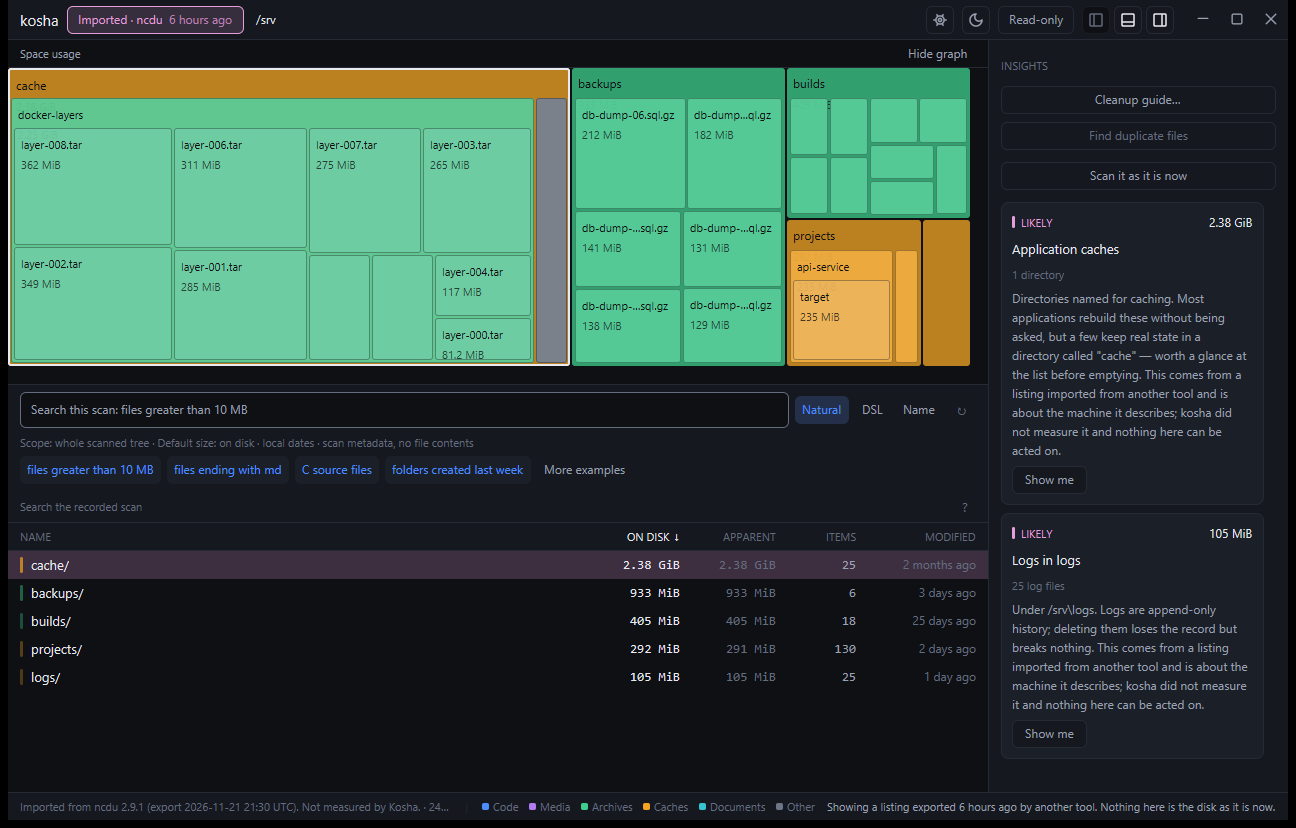
What is recorded, from the export:
- Names, the folder structure, apparent size (
asize) and ncdu's disk usage (dsize). If the export records no disk usage at all, on-disk sizes are stored equal to apparent sizes and every view says they were not recorded. - Modification times, only when ncdu exported them (
ncdu -e). Otherwise date conditions in searches match nothing in the record. - Hard links: entries with the same device and inode count once, as ncdu does.
- Entries ncdu could not read, excluded or did not cross into are kept and flagged; totals are then shown as lower bounds.
- Creation dates and owners are not recorded.
An imported record allows no file action of any kind, in any mode: no deletion, Trash, open, reveal, duplicate search or rescan. Its root is a label for a place on another machine, not a path on this one. Insights may still describe build output or caches, as advice about the source machine; rules about this machine's allocation (cluster slack, sparse files, compression) do not run. Comparisons with imported records work and warn that the sizes came from another tool.
Limits: ncdu's binary export (ncdu -O) is not read; export JSON with
ncdu -o instead. An export with file names that are not valid UTF-8 is not
valid JSON and is refused; convert it first, for example with iconv. Imports
are refused above 8 GiB of input or decompressed data (raise with
--max-input-bytes), 50 million entries, 120 directory levels, 4096-byte
names, or a zstd window larger than 8 MiB. Names that would step outside their
folder (., .., a / or NUL) are refused, naming the entry. A refused
import writes nothing.
Compare observations
The snapshot sidebar offers All and This location. This location shows explicit snapshots whose drive or folder root matches the open scan's root; drilling into a subfolder does not change that root. The choice is remembered. With no scan open, All is available so you can still open any saved snapshot.
Use the palette's comparison action to compare the current tree with a kept snapshot. Comparisons describe recorded observations, not continuous activity. Rescan to refresh the current side.
What changed compares the tree already in memory with the selected snapshot. It does not scan again. This also works when the current view came from an automatic drive record or another explicit snapshot. Reading the selected record and computing the comparison run in the background; large records can still take time. The older observation is always the Before side.
The comparison shows both roots and observation dates, separate Before and After sizes, and a net change across files. Directory totals overlap their children and are excluded from the net. Filter directories/files and All, New, Grew, Shrank, or Gone. Hover for a full path; click a row to copy its relative path.
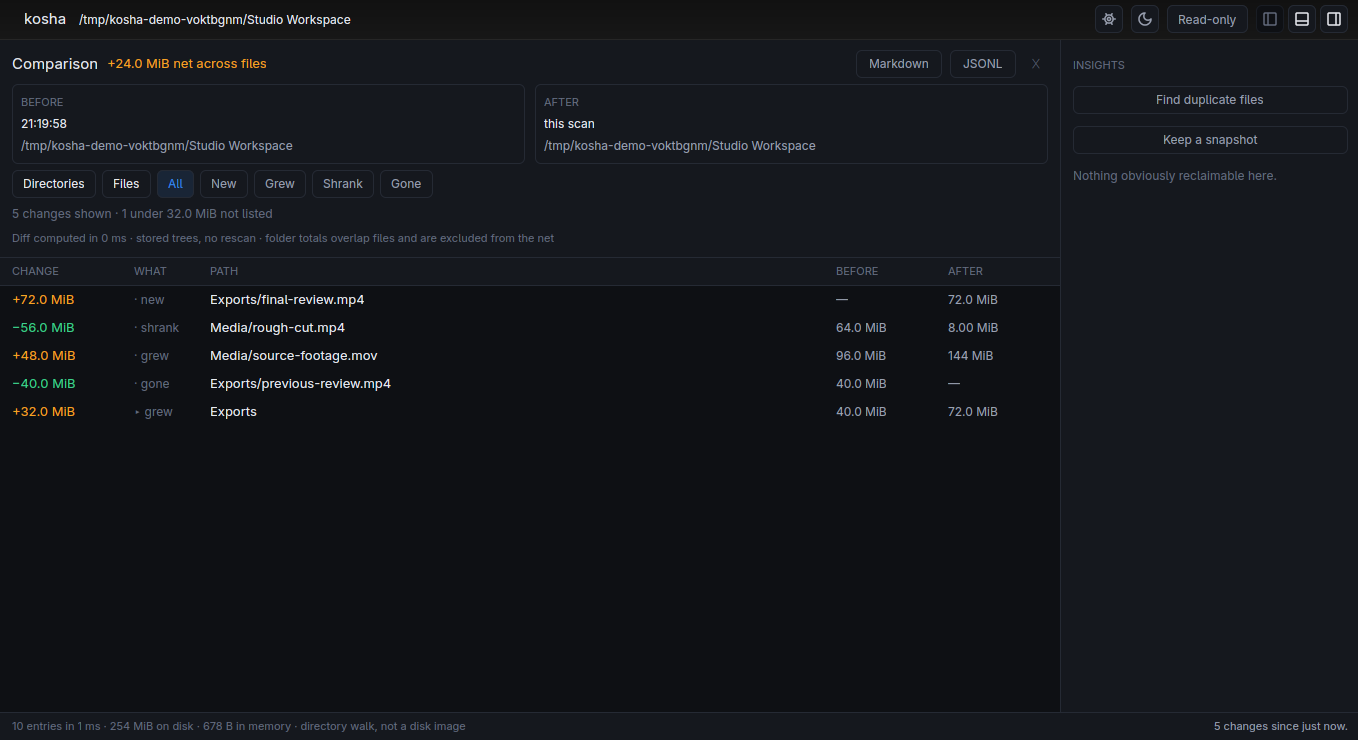
Choose Markdown or JSONL above the comparison, or the matching command palette export action. Exports capture the visible filters when invoked and include the roots, observation timestamps, threshold, and warnings. Markdown separates directory and file tables. JSONL starts with a comparison metadata record followed by one change record per visible row, with exact byte sizes and signed deltas. The overall net includes all file changes, including changes below the threshold; it is not the sum of filtered rows. Exporting does not rescan.
Use the same root and comparable scan settings. Differences in mount boundaries, allocation measurement, hardlink rules, access, and completeness can look like changes in files. Read comparison warnings.
Historical views retain snapshot safety guards: scan again before file-changing actions. A record of yesterday's file cannot establish its current identity or contents. See file locations for backup and removal.
Compare two folders or snapshots
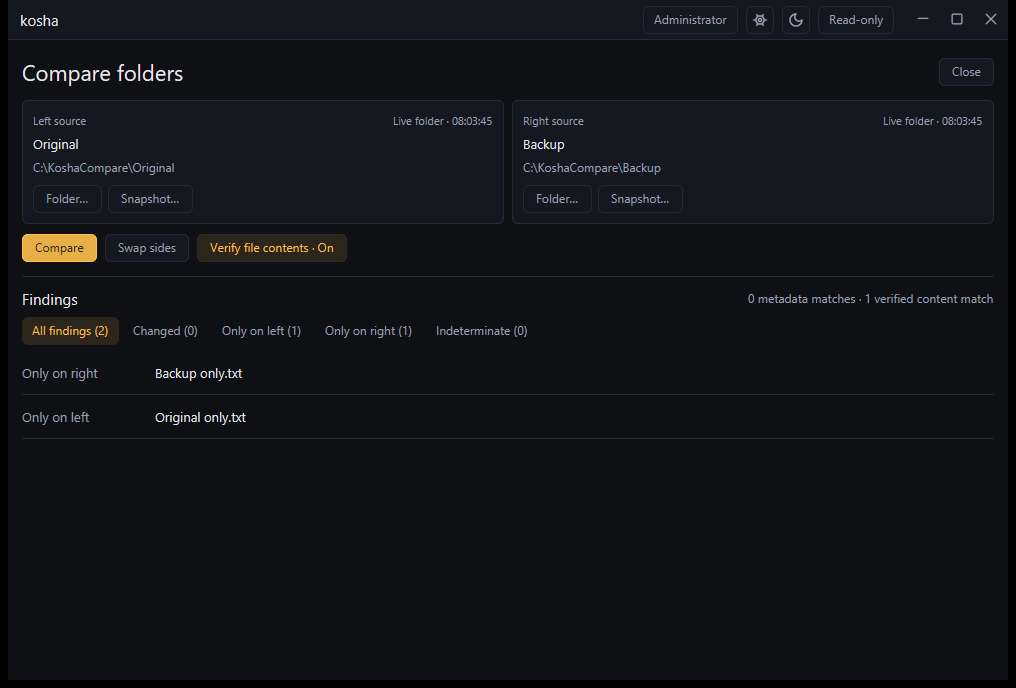
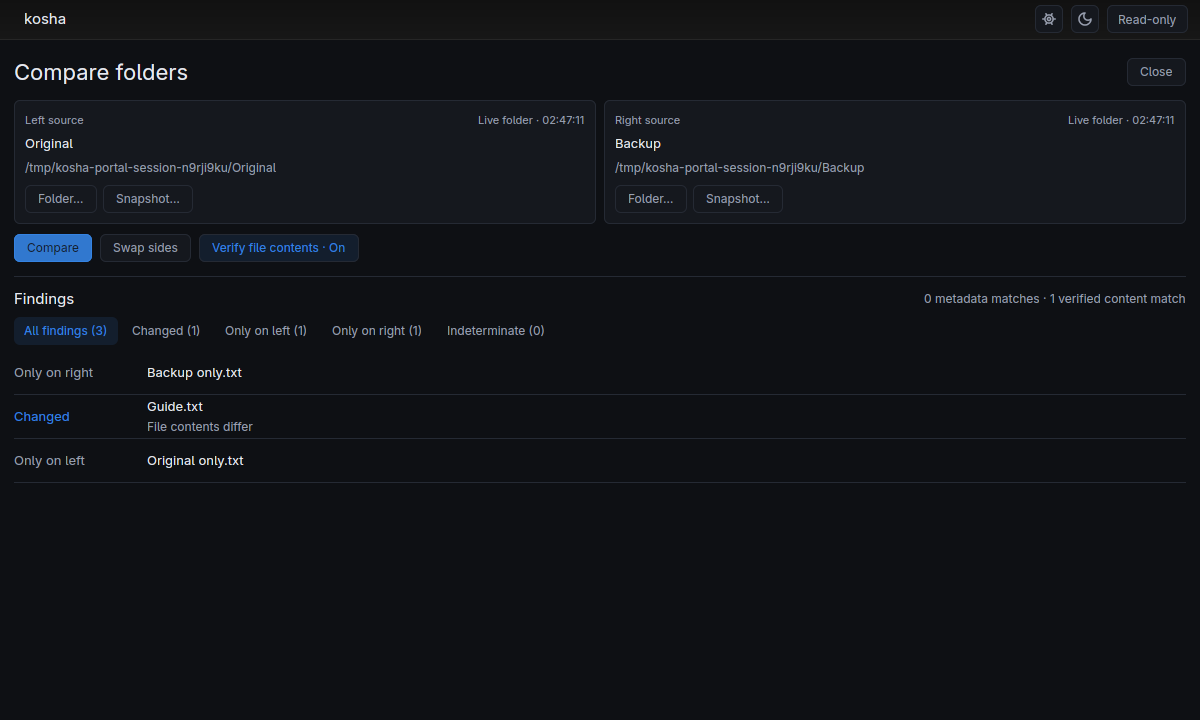
Choose Compare folders… from the welcome screen or select the two-folders icon in the title bar. Hover over the icon to see its label. Comparison is also available in the command palette (Ctrl+K or Command+K). If you open it while browsing a local scan or saved snapshot, Kosha fills in the left side with that source. For each side, choose Folder… for a live scan or Snapshot… to use a saved Kosha record. Choose Compare to run it, or Swap sides to reverse the direction. You can cancel from the comparison page or the background actions panel.

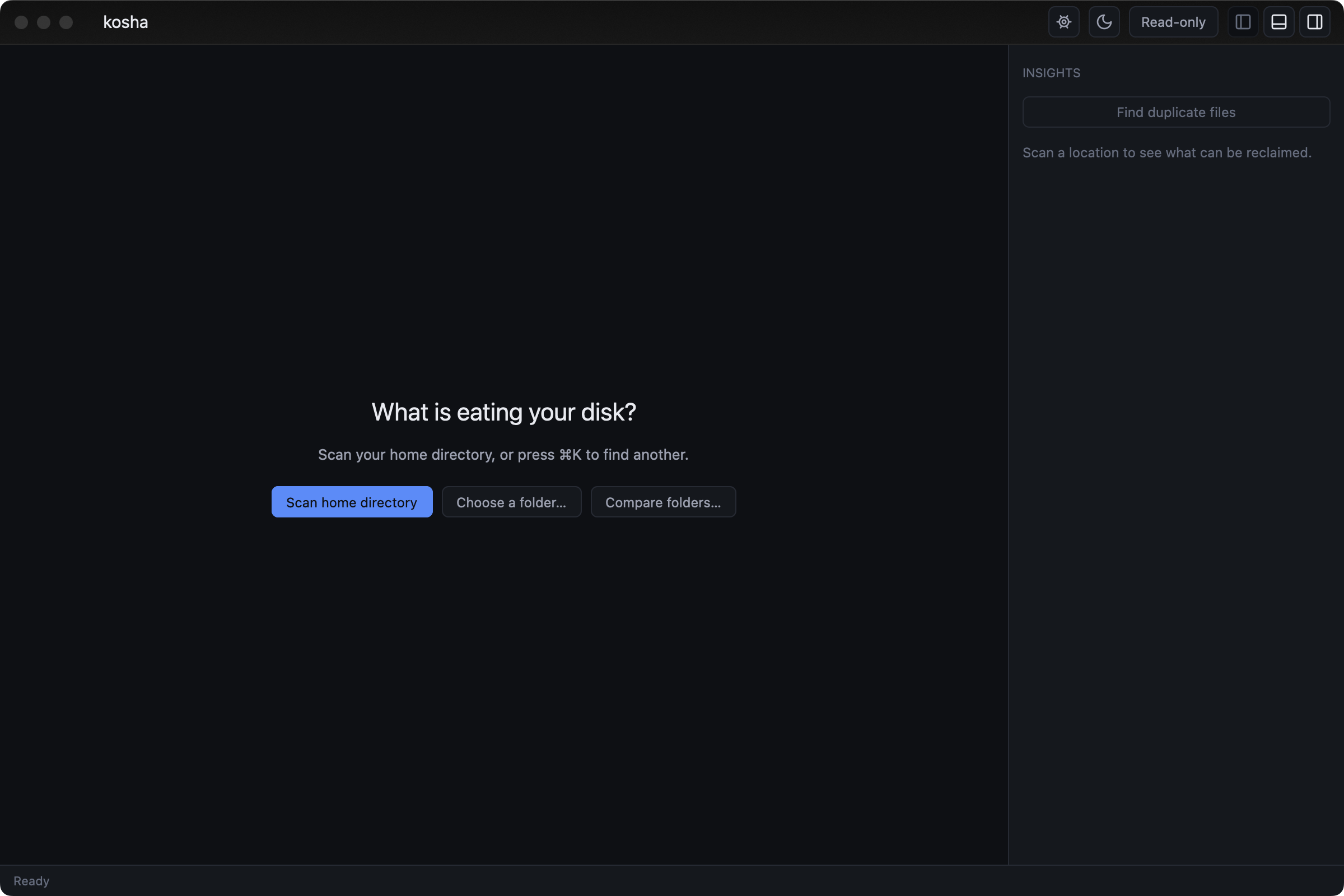
The report lists differences and indeterminate paths, with a reason for each finding. Select a status above the list to focus on that category. The report also counts matching metadata and warns when either source has incomplete coverage. Under Export findings, choose Plain text (.txt) for quick reading, Markdown (.md) for sharing, or JSONL (.jsonl) for scripts. The saved report includes the selected findings filter, source details, coverage warnings, and totals for the complete comparison. Exporting uses the displayed results and does not rerun the comparison. View the export controls on macOS.
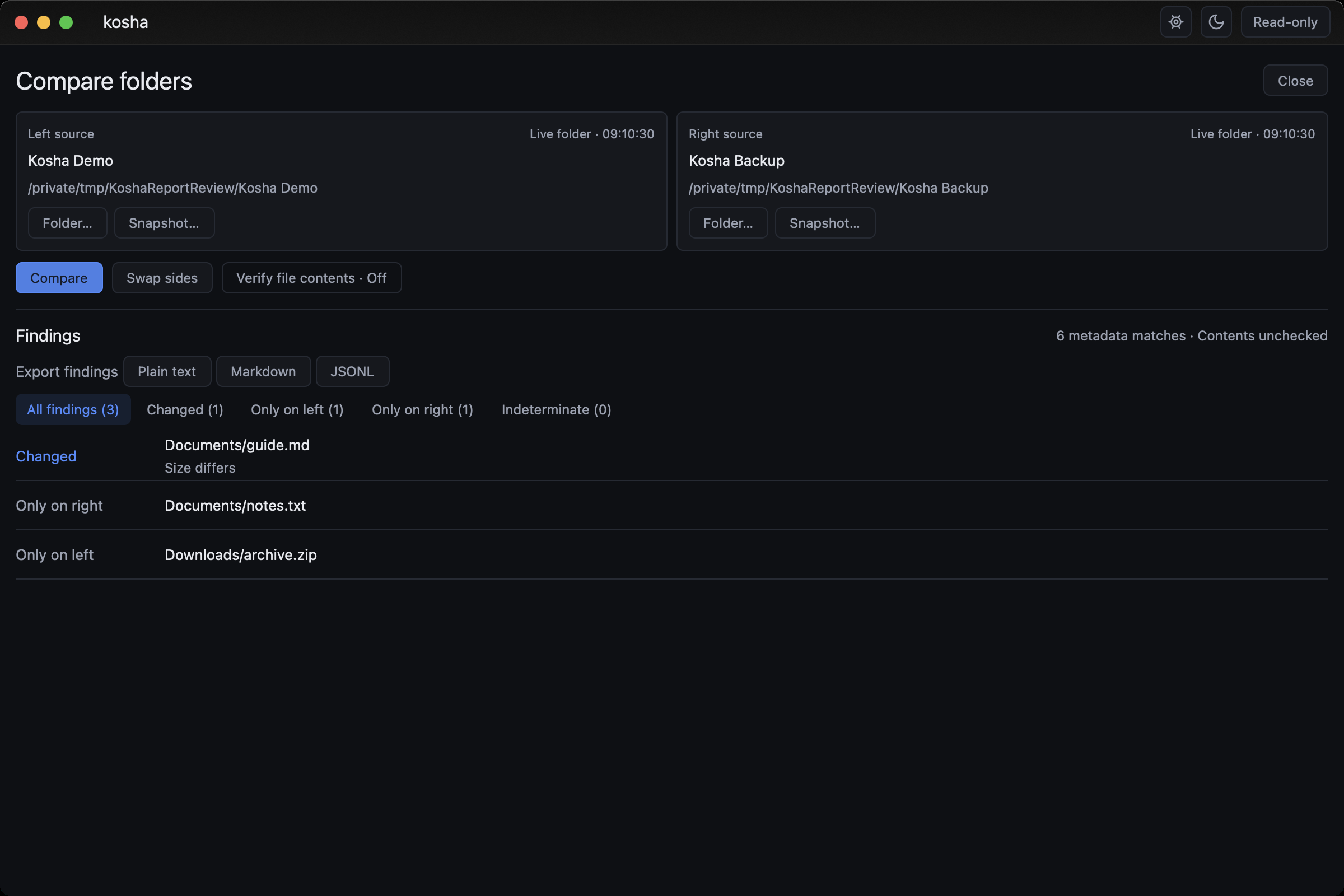
Relative paths are matched byte for byte. The comparison uses entry type, apparent size, and modification time with a two-second tolerance. On Windows, macOS, and Linux, turn on Verify file contents before running the comparison to check equal-size regular files at matching paths. This reads both files and reports verified content matches separately from metadata matches. The option is available when both sources are live folders.
On Windows, a WSL folder opened through \\wsl.localhost can be compared by
metadata. If file contents show as indeterminate, the
command-line guide shows
how to run byte verification from inside the distribution.
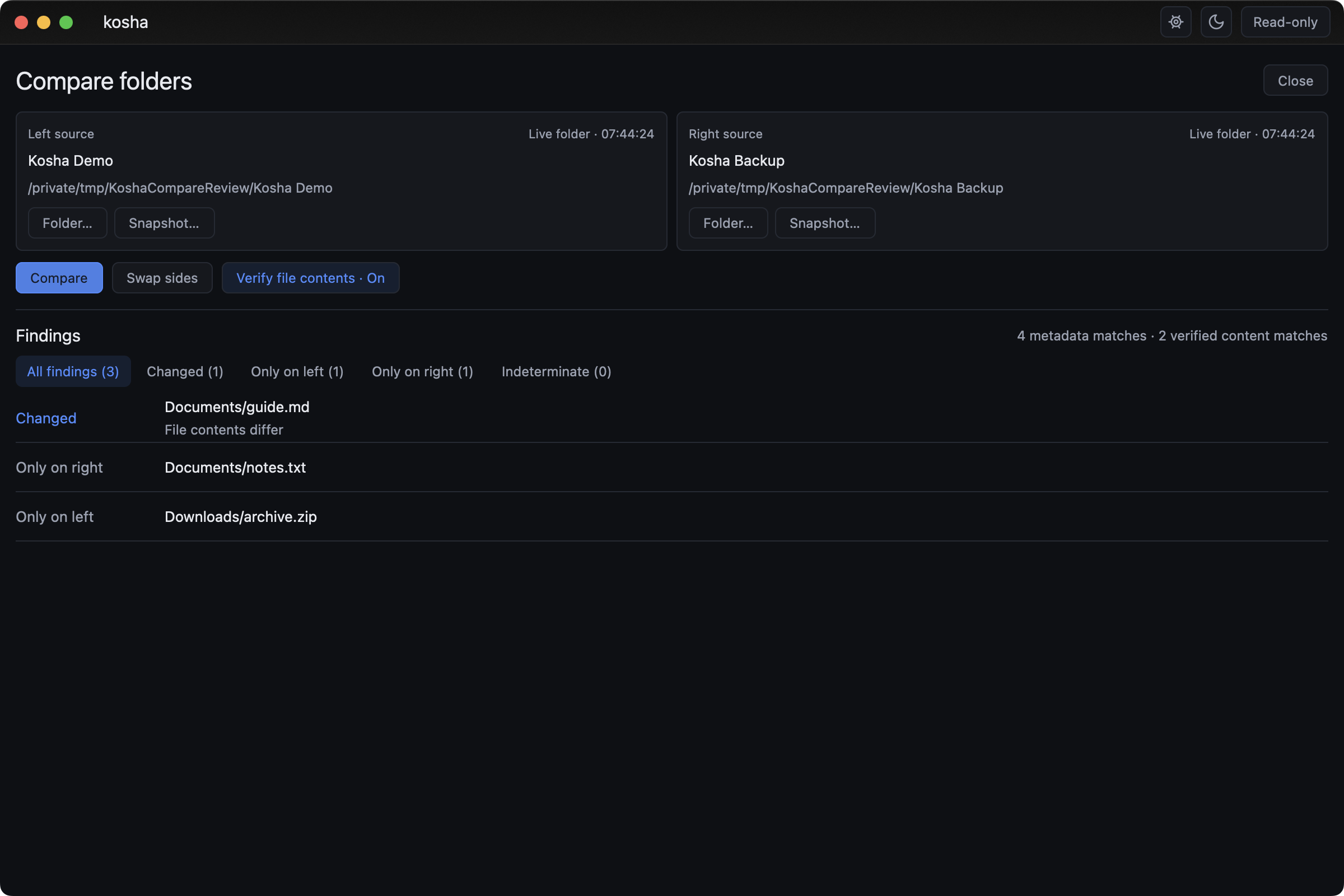
View a Windows comparison with one verified content match and one file unique to each side. View a Linux comparison that also finds a same-size edit.